

.superun credential file and the Restore archived project entry to upload it.
What it is
Archive is a project lifecycle state that sits between Active and Permanently deleted:- Data is preserved: source, history, design, and configuration stay in your account—nothing is dropped.
- Runtime resources are reclaimed: published preview / live links and bound runtime environments go offline, no longer consuming continuously billed runtime resources.
- Restorable: you can restore an archived project at any time, returning it to active use.
- Projects you don’t plan to iterate on short term but may bring back online later.
- Temporary pause when balance is insufficient (active or passive), with restore once you top up.
Project states
Exact state labels and styles follow the current product version.
What triggers archiving
- Auto-archive on insufficient balance: if the account / project balance is consistently insufficient to cover ongoing runtime costs, the system moves the affected projects into Archived to prevent over-charging.
Manual archive (.superun credential)
Manual archive is initiated by the project owner: the project no longer appears in the main My Works list, share links stop working, and creation storage fee (and related) billing pauses; data remains on the server. Later, you restore with a.superun file via Restore archived project.
Use it when you want to pause creation storage–related charges but may bring the project back later.
Who can use it
- The project owner (creator / org space admin). Collaborators and regular members do not see the archive entry.
Preconditions
If requirements are not met, Archive may be hidden, or the server will reject the action with an error.
Archive steps
1. Open the archive entry- Open the superun home or workspace and go to My Works (or the equivalent work list).
- On the project card, open the ”…” menu at the bottom-right.
- Choose Archive.
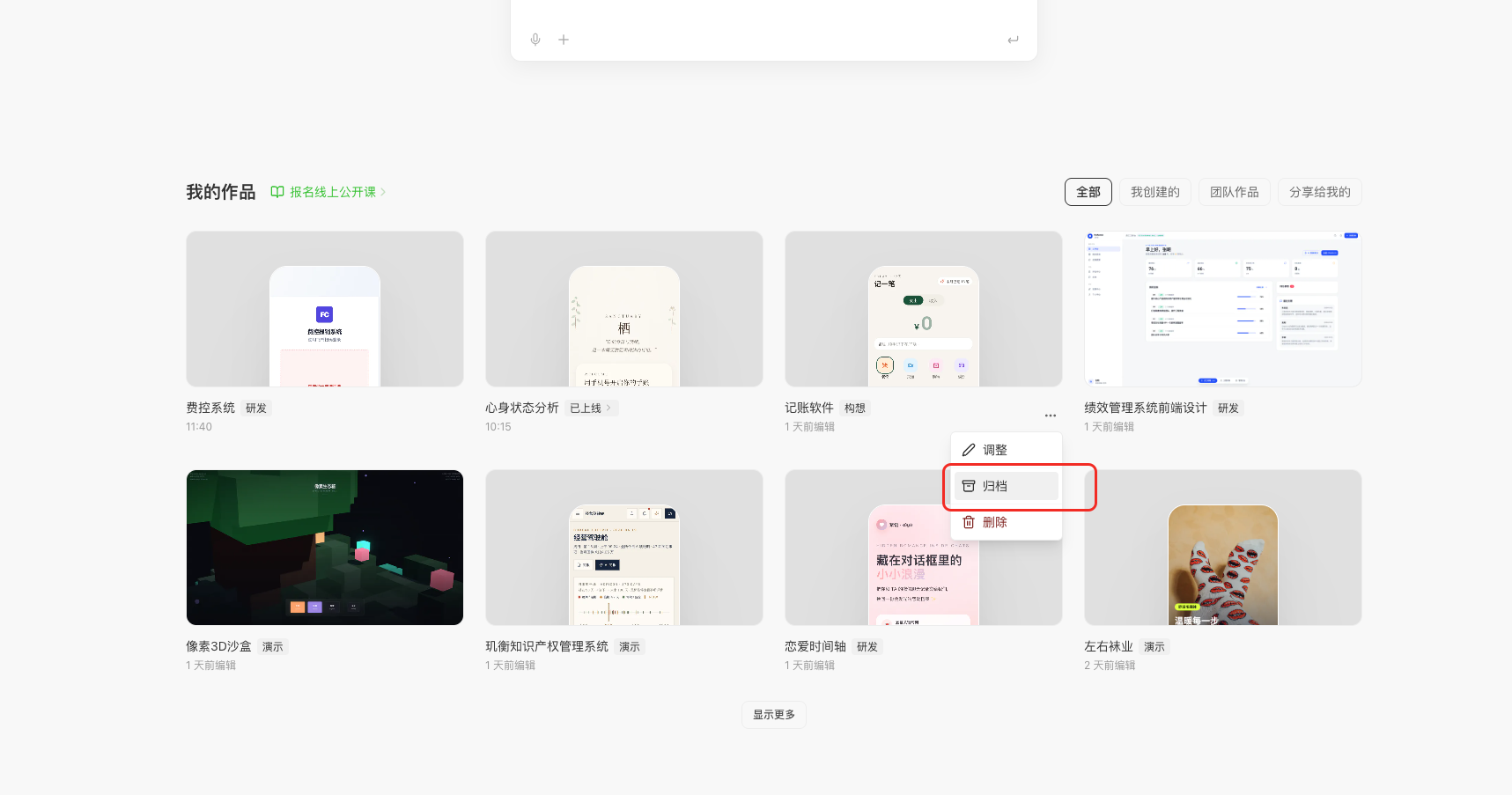 2. Download the
 .superun credential file
- After you confirm in the product flow, the browser prompts you to save a
.superunfile named after the project (for exampleaccounting-app.superun). - Keep this file safe—it is the credential to restore this project. Save it locally and back it up (e.g. cloud storage).
If the
.superun file was not saved successfully, do not complete the re-upload confirmation step; losing the file may block self-serve restore—contact support or operations.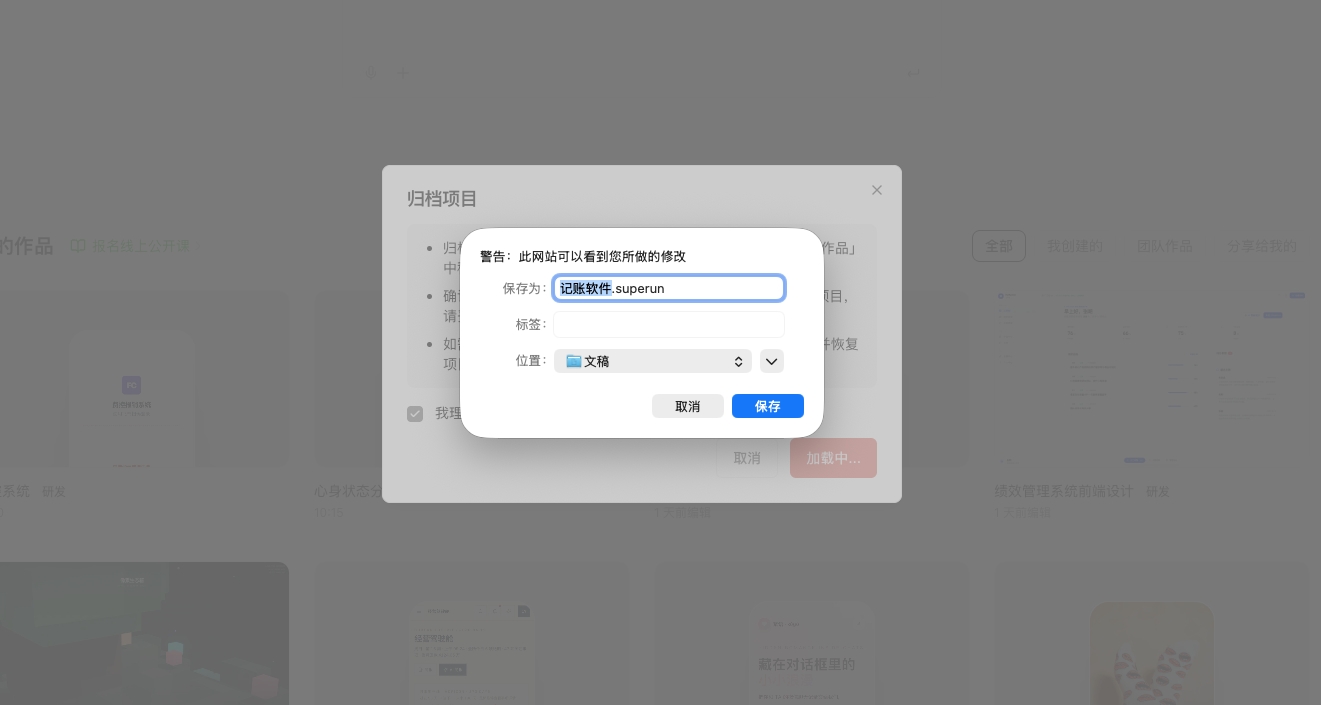 3. Re-upload
 .superun to confirm
To avoid “archive applied but credential not saved”, a second confirmation is required:
- In the Archive project (or equivalent) dialog, upload the same
.superunfile you just downloaded, as prompted. - After validation, the system completes the archive.
- The project leaves the main list or moves to an archived view (depends on version).
- Shared links (published site, build/share links, invites, etc.) show link invalid or equivalent.
- Creation storage fee billing pauses from the next cycle; whether fees already charged this cycle are refunded follows in-product billing rules.
Exact link copy, list placement, and billing details follow the current product version.
Restore with Restore archived project and .superun
When the project was manually archived and no longer appears in the normal list, find Restore archived project on My Works (exact placement may vary with filters or empty states; it may also sit near an archived group).

- Click Restore archived project to open the dialog.
- Drag in or click to upload your
.superunfile; the system checks format and that the project belongs to the signed-in user. - The dialog shows how many Compute Credits this restore will cost (follow the dialog; 29 Compute Credits is typical). Confirm your balance is sufficient, then click Restore archived project to submit.
- Restore runs asynchronously in the background, usually within 24 hours (often faster). You receive an in-app message when it completes; the project becomes editable again and creation storage fee and related billing resume per product rules.

After restore, public sharing usually does not flip back to published automatically; publish again if you need live links. Avoid duplicate submissions while a job is queued; follow any extra hints shown in the current product version.
Manual archive FAQ
- I lost my
.superunfile. Self-serve restore is not available; contact support or operations. - Is restore always 29 Compute Credits? Not necessarily. Follow the dialog; 29 Compute Credits is typical; if project size or other factors change the amount, follow the restore dialog and in-app notices.
- Can manual archive refund this month’s fee? No; whether anything is refunded follows product rules.
Restore from the list (archived card)
If the project still appears as archived in My Works (or My Projects), open Restore (or equivalent) on the card—no.superun file needed. The confirmation dialog clearly shows:
- Compute Credits required for this restore (follow the dialog; 29 Compute Credits is typical).
- Your current balance and whether it is sufficient.
- Scope and impact, for example that runtime resources will be re-allocated.
After cloud services are restored, database connection addresses may change. If you find that your project cannot access data properly after restoration, you can tell the AI to “redeploy” in the chat, or click “Repair” directly — the system will automatically complete the redeployment.
Billing notes
- Archive restore (in-list restore and Restore archived project with
.superun) consumes Compute Credits; follow the dialog; 29 Compute Credits is typical—do not rely on memory. - After restore, routine cloud and storage billing for the project still follows product rules.
Whether other flows such as Unarchive incur fees follows the application page and in-product text.
Archived projects can request to be unarchived
When a project is already archived and you don’t actually want to bring it back online—but you do want it out of the archived list and back in the normal list—you can request to unarchive:- Look for Unarchive in the action menu of an archived project (exact entry follows the current version).
- Unarchive is a different action from list restore: it focuses on list visibility and state classification. Whether runtime resources are spun back up or any cost is incurred follows the application page and in-product prompts.
Whether Unarchive is self-serve or requires a customer-support review, and any handling time, follow the in-product description.
Cancel archive (avoid accidental archive)
To avoid an accidental archive, the system may provide a cancellation window right after archiving completes—within that window, you can undo the just-applied archive and the project returns to active.The exact length of the cancellation window, its entry point, and whether it is fully free, follow the current product version.
Permissions
- Project owners typically have archive and restore permissions.
- Collaborators / team members’ visibility and actions depend on their role.
Exact per-role boundaries follow the product permission matrix.
FAQ
- Will I lose my code or data after archiving? No—project data is preserved; only runtime resources are reclaimed.
- Can I view version history while archived? Whether history is viewable while archived, or whether restore is required first, follows the current product version.
- How long does restore take? List restore: Depends on size and scheduling; follow the Restoring state.
.superunrestore after manual archive: background job typically within 24 hours; you get an in-app message when it completes—follow the dialog and status UI. - What happens to my tokens if restore fails? Failure handling follows the in-product prompt; reach out to customer support if needed.
- Can I restore multiple projects in bulk? Whether bulk restore is supported follows the current product version.
superun website
Visit the official website to see the full project management capabilities.