> ## Documentation Index
> Fetch the complete documentation index at: https://docs.superun.ai/llms.txt
> Use this file to discover all available pages before exploring further.
# Smart Fill
Smart Fill allows you to **quickly add new content** into your design by **automatically creating an empty section inside the selected frame**.\
You simply choose a frame → enter a prompt → and Smart Fill inserts a styled content block that matches your existing design.
***
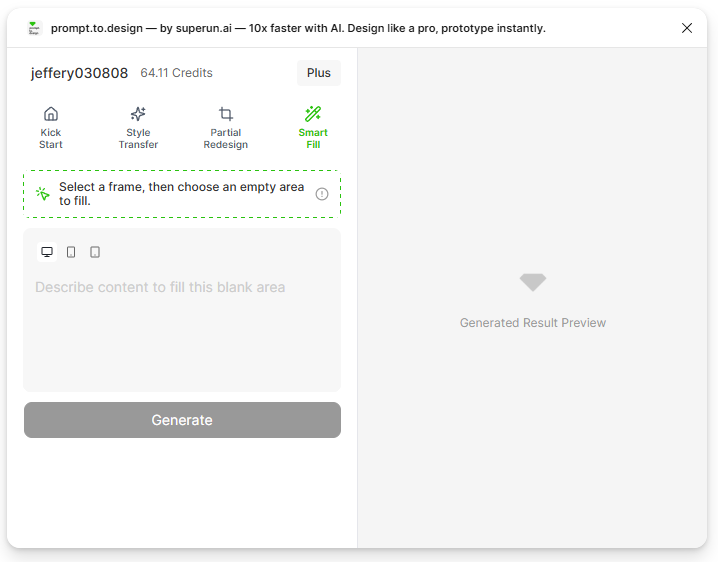
## 1. Select the **Smart Fill** tab
Open the **prompt.to.design** plugin and click **Smart Fill**.\
This mode lets AI add a new content block inside your selected frame.
 ***
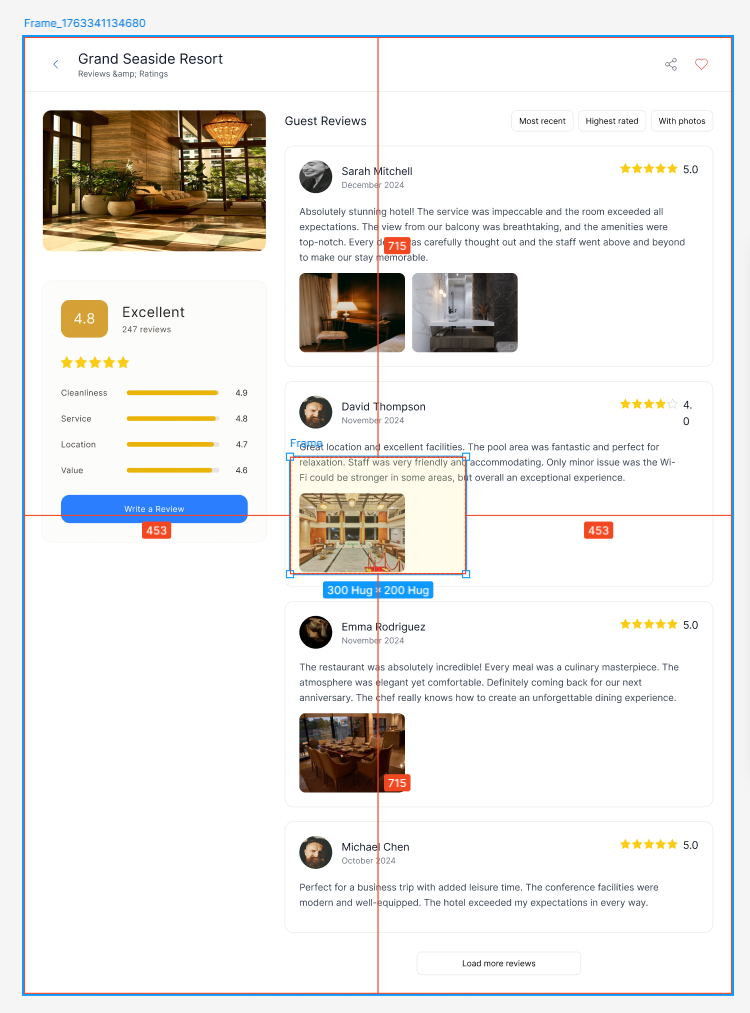
## 2. Select the frame where you want to add new content
Click on a **frame** in your Figma canvas.\
Smart Fill will automatically insert an **empty section** inside this frame — this is where the new content will be generated.
***
## 2. Select the frame where you want to add new content
Click on a **frame** in your Figma canvas.\
Smart Fill will automatically insert an **empty section** inside this frame — this is where the new content will be generated.
 ***
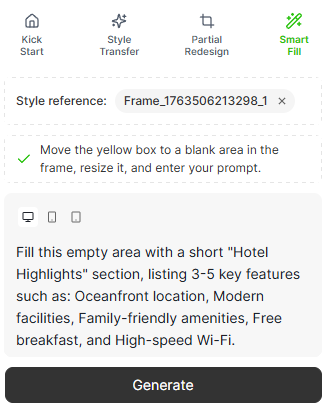
## 3. Enter a prompt describing the new content you want
Describe the content you want Smart Fill to generate inside the automatically added empty section.
### Example: “Hotel Highlights”
> “Fill the empty section with a ‘Hotel Highlights’ block including:
>
> * Free WiFi
> * Harbor View
> * 24/7 Support
>
> Match the style, spacing, and typography of the existing page.”
***
## 3. Enter a prompt describing the new content you want
Describe the content you want Smart Fill to generate inside the automatically added empty section.
### Example: “Hotel Highlights”
> “Fill the empty section with a ‘Hotel Highlights’ block including:
>
> * Free WiFi
> * Harbor View
> * 24/7 Support
>
> Match the style, spacing, and typography of the existing page.”
 ***
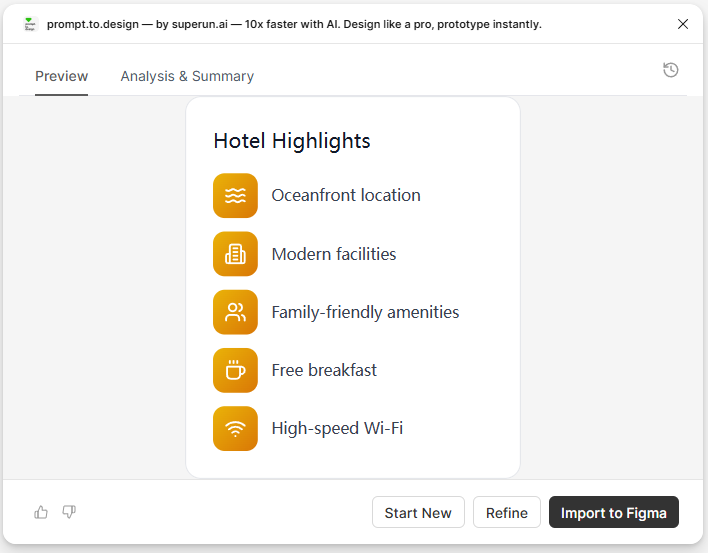
## 4. Generate and review the preview
Click **Generate** to let the AI create your new content block.\
The preview will show a styled “Hotel Highlights” section that fits seamlessly with your frame’s existing design.
***
## 4. Generate and review the preview
Click **Generate** to let the AI create your new content block.\
The preview will show a styled “Hotel Highlights” section that fits seamlessly with your frame’s existing design.
 ***
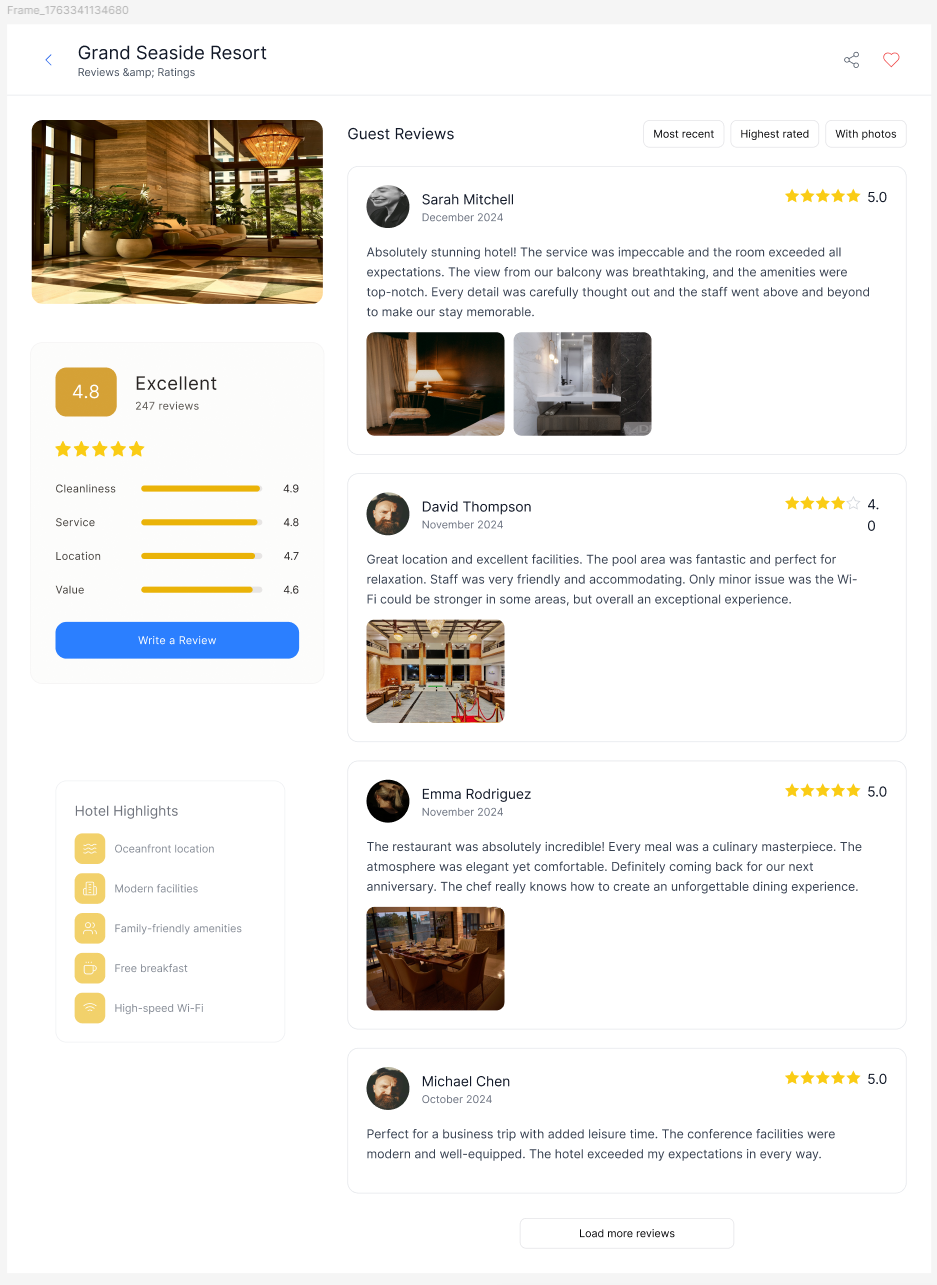
## 5. Insert the content into Figma
Click **Insert to Figma** to place the generated section inside your selected frame.\
Smart Fill will replace the empty section it created earlier with your newly generated content.
Only this new section is added — the rest of the frame remains unchanged.
***
## 5. Insert the content into Figma
Click **Insert to Figma** to place the generated section inside your selected frame.\
Smart Fill will replace the empty section it created earlier with your newly generated content.
Only this new section is added — the rest of the frame remains unchanged.
 ***
## Summary
Smart Fill helps you:
* Add new content blocks without manually creating layouts
* Let the plugin automatically create an empty section for you
* Keep styling, spacing, and typography consistent with the page
* Instantly generate sections like:
* Highlights
* Features
* Amenities
* Info blocks
* Key points
* Work entirely with native Figma layers
Smart Fill is ideal for quickly extending your page with meaningful, styled content.
***
## Summary
Smart Fill helps you:
* Add new content blocks without manually creating layouts
* Let the plugin automatically create an empty section for you
* Keep styling, spacing, and typography consistent with the page
* Instantly generate sections like:
* Highlights
* Features
* Amenities
* Info blocks
* Key points
* Work entirely with native Figma layers
Smart Fill is ideal for quickly extending your page with meaningful, styled content.