> ## Documentation Index
> Fetch the complete documentation index at: https://docs.superun.ai/llms.txt
> Use this file to discover all available pages before exploring further.
# Partial Redesign
Partial Redesign lets you update **one specific area** of a frame without affecting the rest of your layout.\
This is useful when you want to refresh a card, redesign a section, or explore variations while keeping your page structure intact.
***
## 1. Select the **Partial Redesign** tab
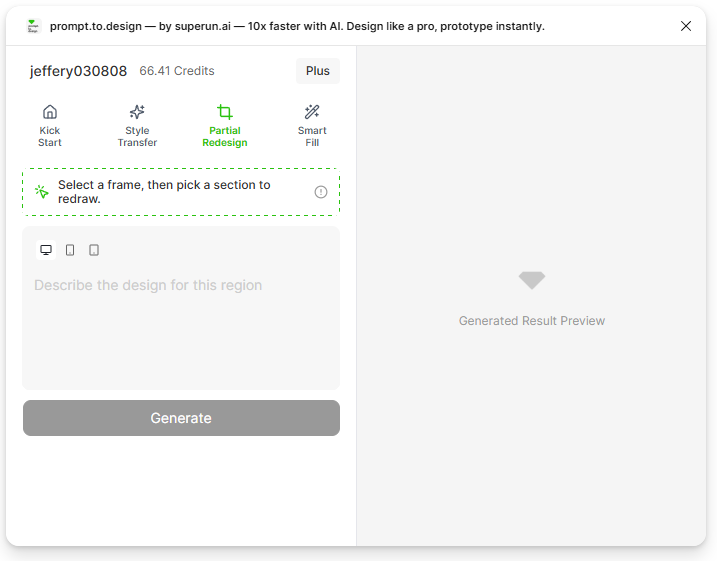
Open the **prompt.to.design** plugin and click the **Partial Redesign** tab.\
This mode allows you to pick an existing area inside a frame and regenerate just that part.
 ***
## 2. Select a frame that contains the region you want to redesign
To begin, you must select an entire **frame** on your Figma canvas.\
The plugin needs to know which page you want to work inside before you can choose a specific region.
### Why this step matters:
* Region Redesign **only works when a frame is selected first**
* If no frame is selected, the plugin cannot enter region-selection mode
* Once a frame is selected, the plugin will show the message:\
**"Select a region in the frame"**
***
## 2. Select a frame that contains the region you want to redesign
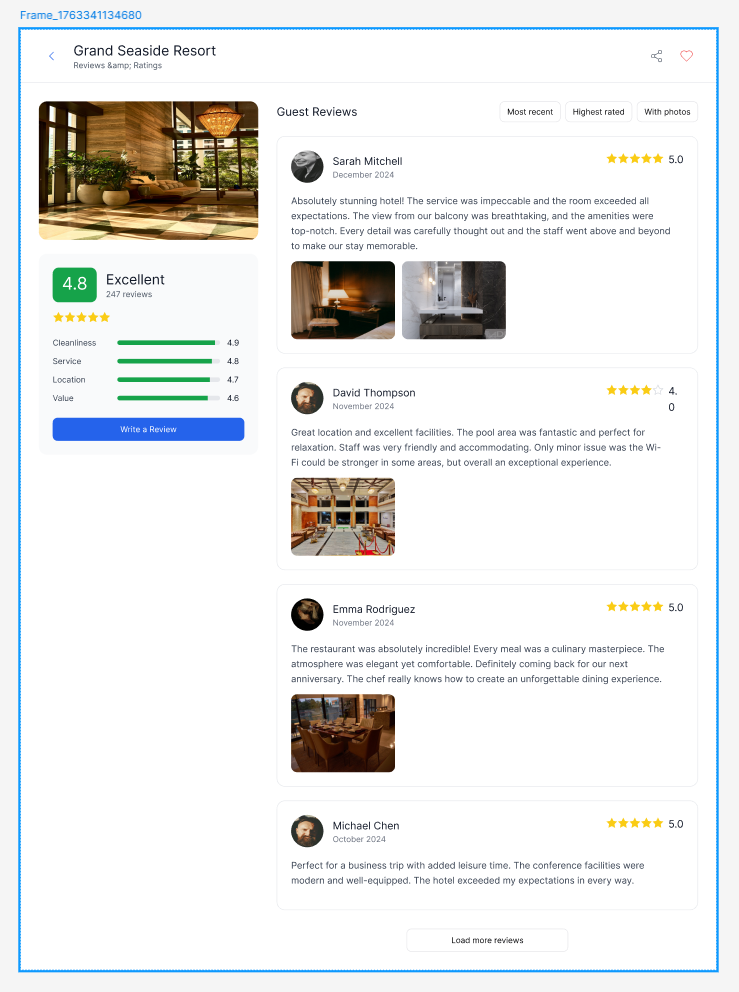
To begin, you must select an entire **frame** on your Figma canvas.\
The plugin needs to know which page you want to work inside before you can choose a specific region.
### Why this step matters:
* Region Redesign **only works when a frame is selected first**
* If no frame is selected, the plugin cannot enter region-selection mode
* Once a frame is selected, the plugin will show the message:\
**"Select a region in the frame"**

 ***
## 3. Select a region inside the frame
After selecting a frame, click on the specific area you want to redesign - for example, a card, a section, or a content block.
***
## 3. Select a region inside the frame
After selecting a frame, click on the specific area you want to redesign - for example, a card, a section, or a content block.
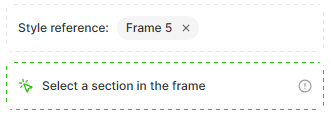 ### Recommended method (especially for beginners):
**Use the left-side Figma Layer Panel to select the exact region.**
This ensures you pick the correct component or container even when layers are nested.
### Recommended method (especially for beginners):
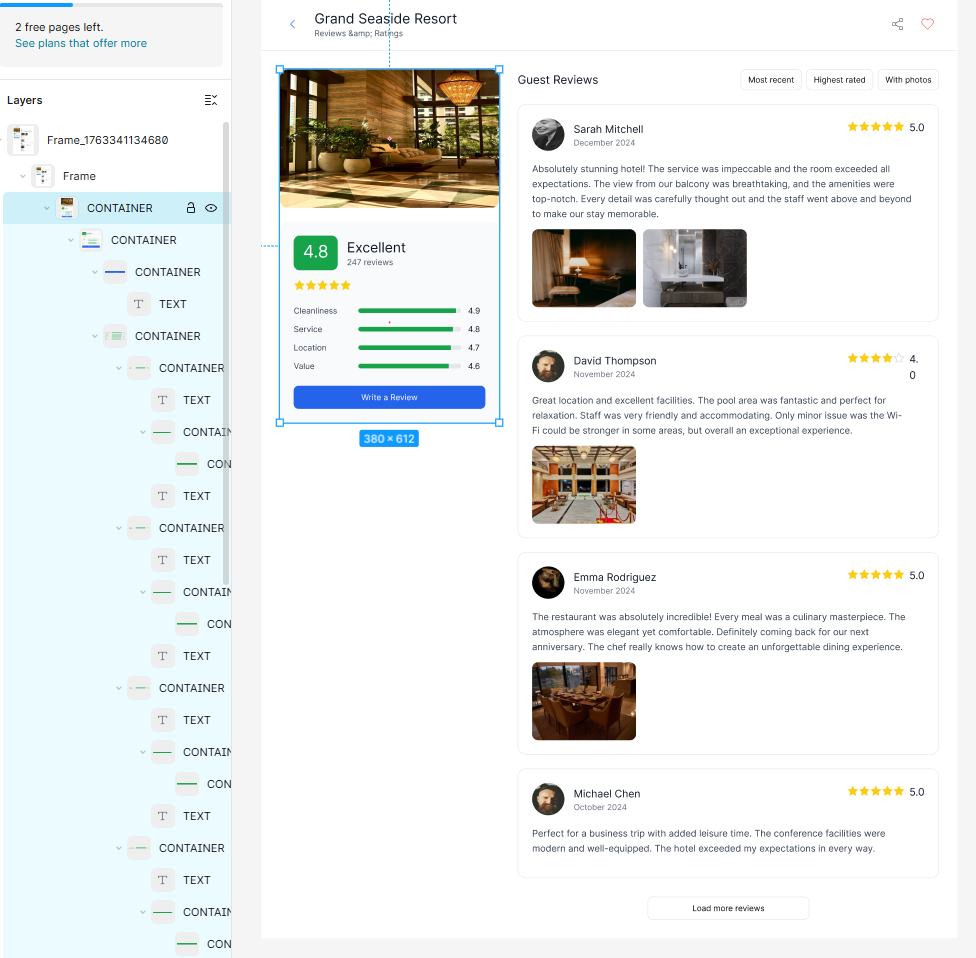
**Use the left-side Figma Layer Panel to select the exact region.**
This ensures you pick the correct component or container even when layers are nested.
 ***
## 4. Describe what you want to update in the selected region
Type a short prompt describing how you want the selected area to be redesigned.\
Only the chosen region will be updated - the rest of your page stays unchanged.
Example prompt:
> "Redesign this rating card into a premium, luxury hotel style.\
> Use warm tones, soft elevation, and refined typography. Keep all content, but make it feel elegant and high-end."
***
## 4. Describe what you want to update in the selected region
Type a short prompt describing how you want the selected area to be redesigned.\
Only the chosen region will be updated - the rest of your page stays unchanged.
Example prompt:
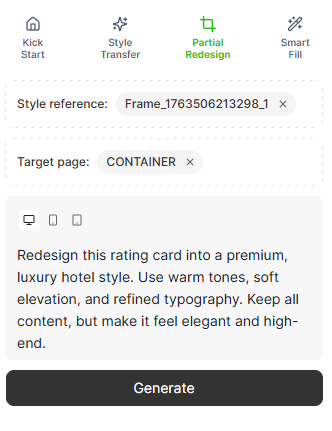
> "Redesign this rating card into a premium, luxury hotel style.\
> Use warm tones, soft elevation, and refined typography. Keep all content, but make it feel elegant and high-end."
 ***
## 5. Generate and review redesigned previews
Click **Generate** to create new variations of the selected region.\
The preview will show new designs that match your frame's existing style system.
You can scroll or zoom to compare different versions.
***
## 5. Generate and review redesigned previews
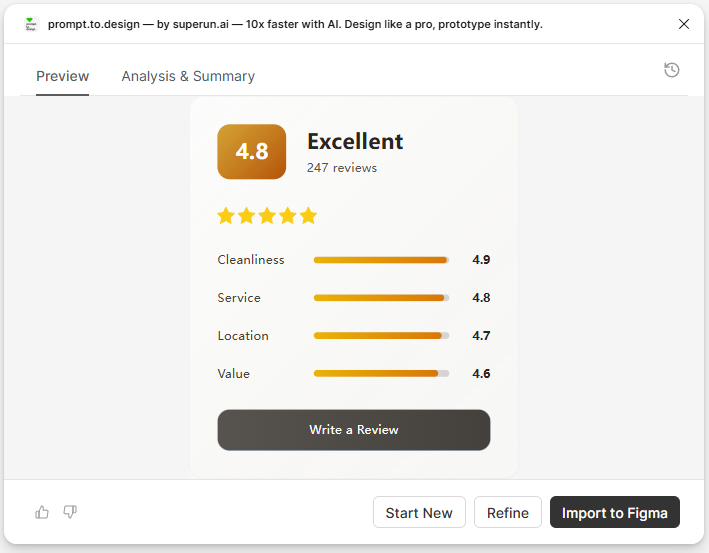
Click **Generate** to create new variations of the selected region.\
The preview will show new designs that match your frame's existing style system.
You can scroll or zoom to compare different versions.
 ***
## 6. Insert the redesigned region into Figma
Click **Insert to Figma** to apply the new version.\
Only the selected area will be replaced - the rest of the frame will remain exactly the same.
The updated region will appear as fully editable Figma layers.
***
## 6. Insert the redesigned region into Figma
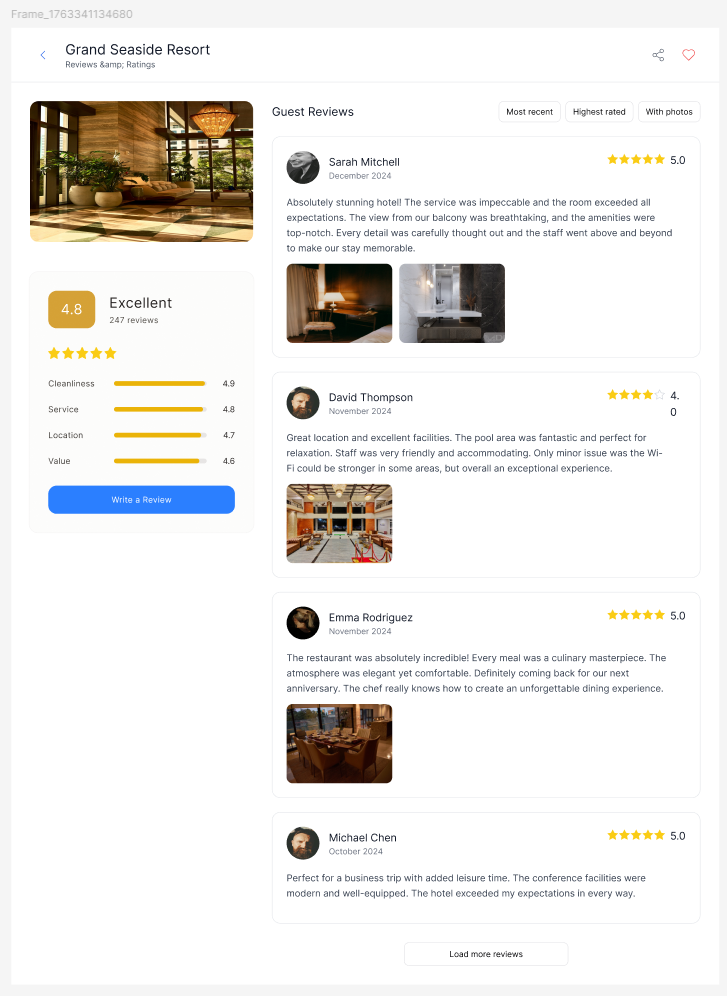
Click **Insert to Figma** to apply the new version.\
Only the selected area will be replaced - the rest of the frame will remain exactly the same.
The updated region will appear as fully editable Figma layers.
 ***
## Summary
With Partial Redesign, you can:
* Update only one part of a page without affecting the rest
* Explore multiple design variations quickly
* Keep your page structure and spacing unchanged
* Maintain stylistic consistency across your layout
* Edit all generated output as native Figma layers
Region Redesign is perfect for improving cards, sections, modules, or any part of a page that needs a fresh look.
***
## Summary
With Partial Redesign, you can:
* Update only one part of a page without affecting the rest
* Explore multiple design variations quickly
* Keep your page structure and spacing unchanged
* Maintain stylistic consistency across your layout
* Edit all generated output as native Figma layers
Region Redesign is perfect for improving cards, sections, modules, or any part of a page that needs a fresh look.