> ## Documentation Index
> Fetch the complete documentation index at: https://docs.superun.ai/llms.txt
> Use this file to discover all available pages before exploring further.
# Generation Result Overview
> Understand the unified result panel in Prompt.to.design that appears after each generation, including preview, analysis, and refinement options.
After each generation—whether it's **Kickstart**, **Style Transfer**, **Region Design**, or **Smart Fill**—Prompt.to.design displays a unified result panel.\
This page explains every part of the result view and how to use it.
***
## 🖼 Preview Panel
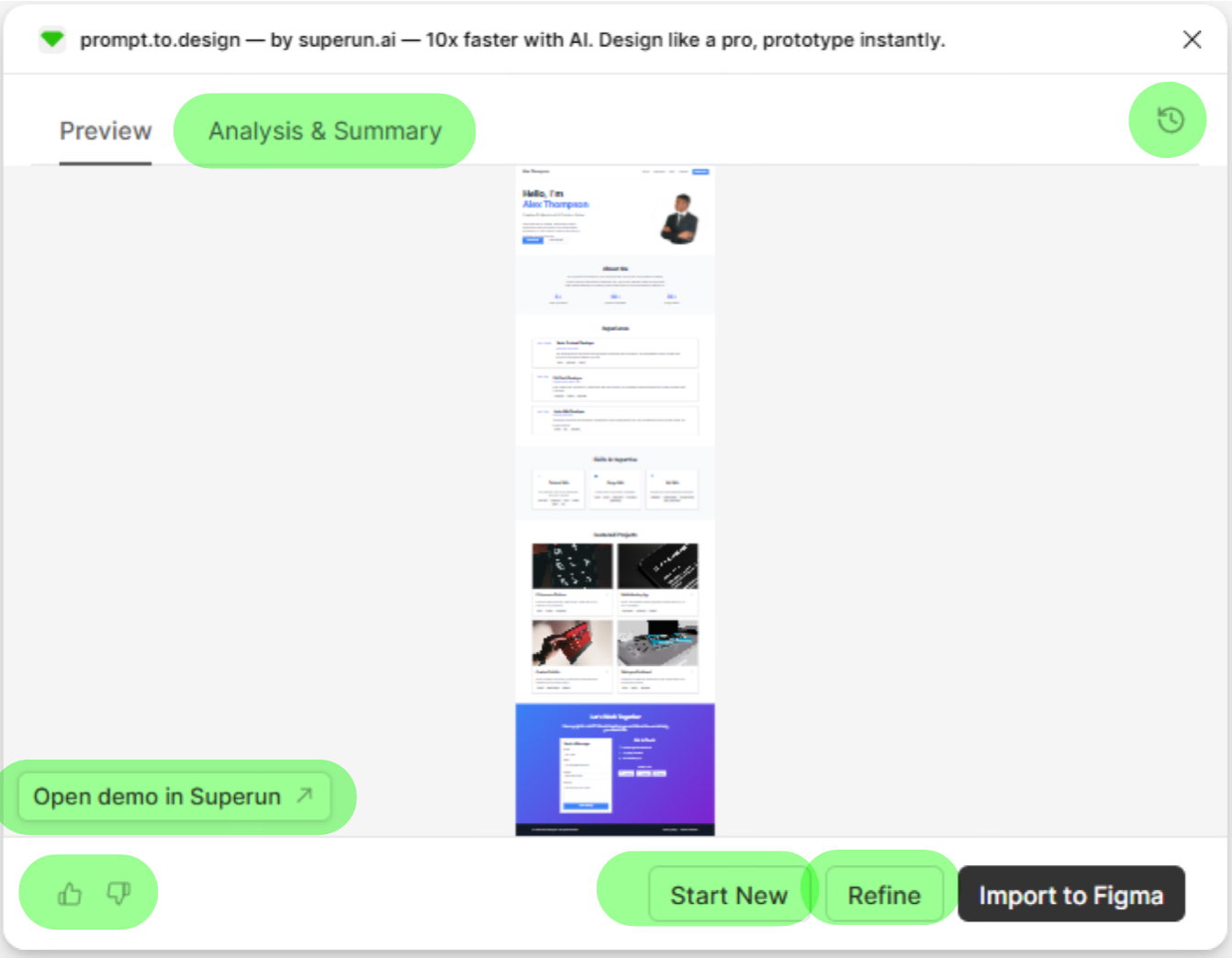
The **Preview Panel** shows your generated layout as a scrollable long image.
### What you can do:
* **Hover to zoom** and inspect details
* **Scroll** to view the full generated layout
* **Click sections** to jump to highlighted areas
 ***
## 🔍 Hover Zoom
Move your mouse over the preview to zoom in on any section.
This helps you:
* Inspect spacing
* Check typography
* Preview component clarity
***
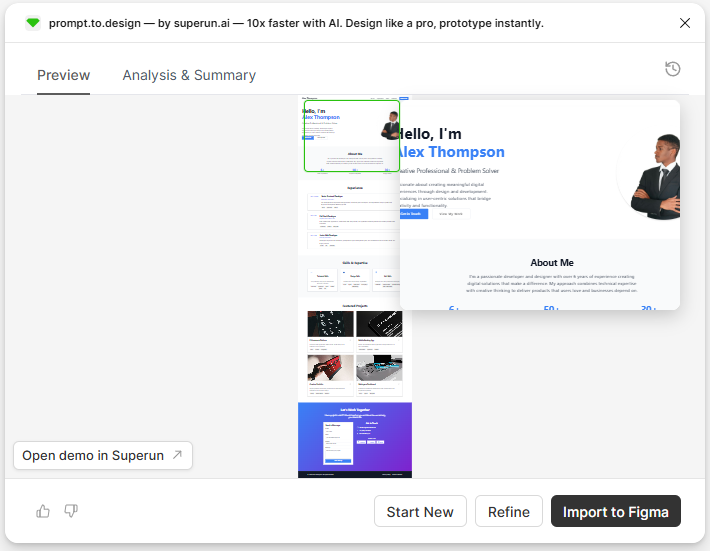
## 🔍 Hover Zoom
Move your mouse over the preview to zoom in on any section.
This helps you:
* Inspect spacing
* Check typography
* Preview component clarity
 ***
## 🧠 Analysis & Summary
Switch to this tab to understand how the system interpreted your prompt.
You’ll see:
* **Analysis** — understanding of your intent
* **Summary** — the structure & key sections generated
***
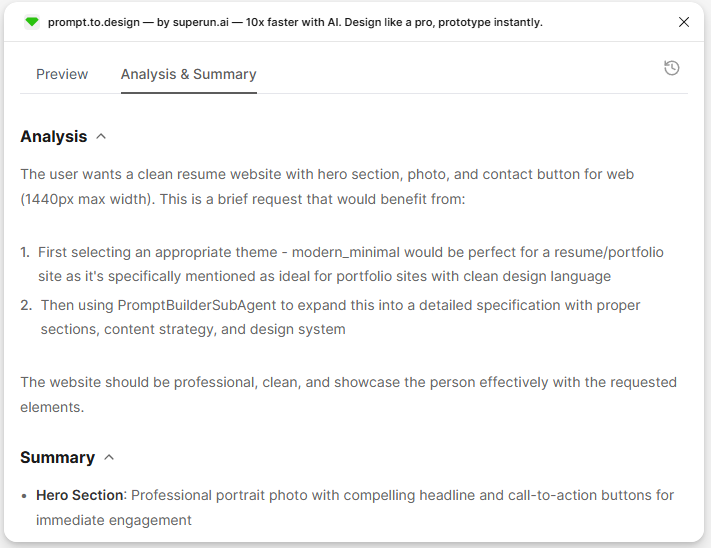
## 🧠 Analysis & Summary
Switch to this tab to understand how the system interpreted your prompt.
You’ll see:
* **Analysis** — understanding of your intent
* **Summary** — the structure & key sections generated
 ***
## 🕘 View History
The **History Panel** shows each generation step.
You can:
* Review previous prompts
* Revisit earlier versions
* Compare improvements
***
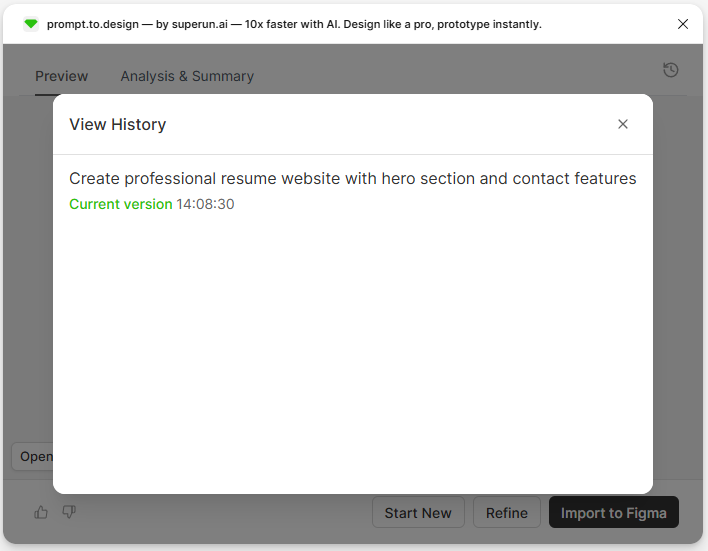
## 🕘 View History
The **History Panel** shows each generation step.
You can:
* Review previous prompts
* Revisit earlier versions
* Compare improvements
 ***
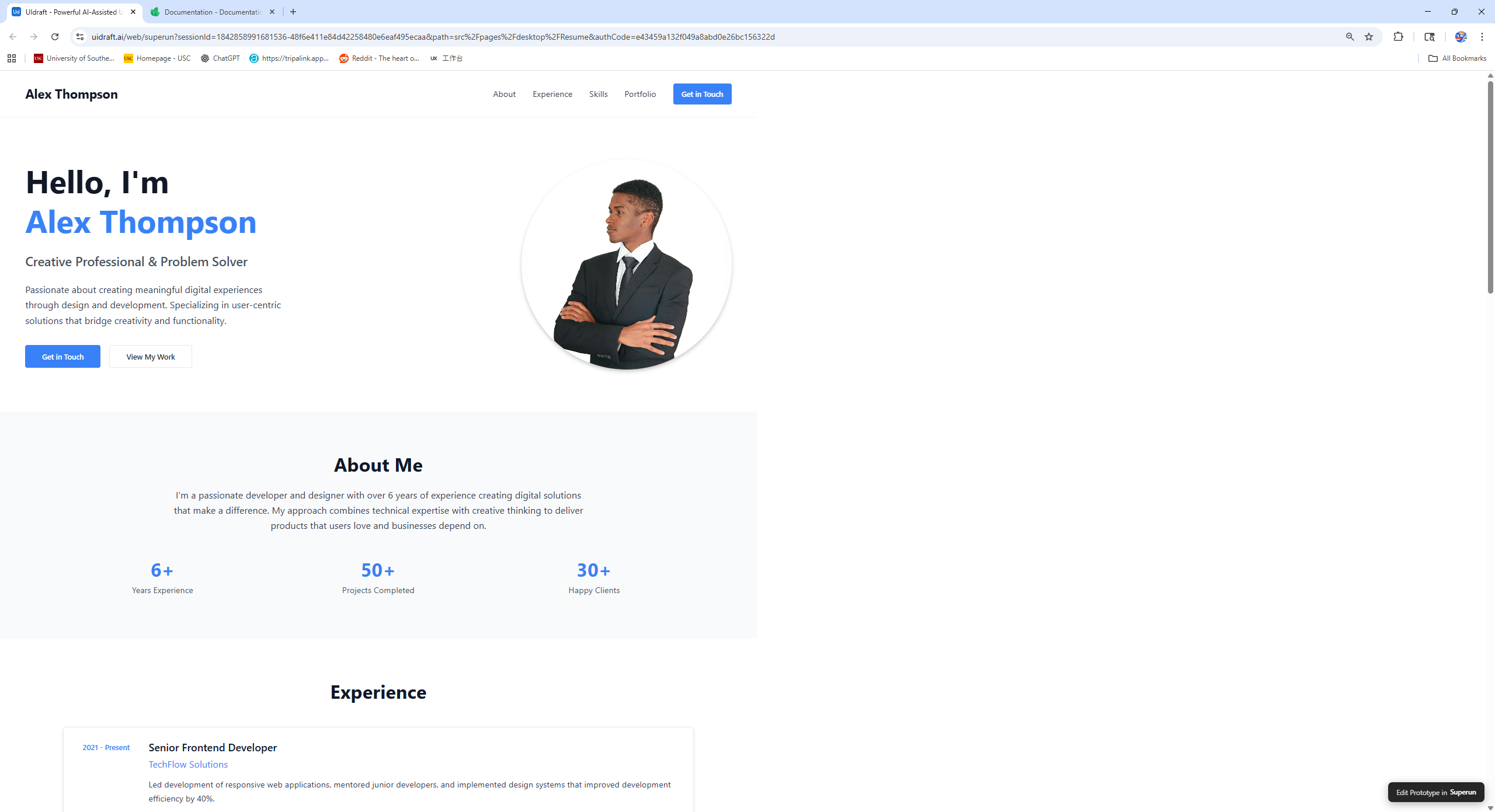
## 🌐 Open Demo in superun
Click **Open demo in superun** to view the generated layout in a full webpage.
Why use it:
* See the design at real scale
* Scroll smoothly
* Preview in browser context
***
## 🌐 Open Demo in superun
Click **Open demo in superun** to view the generated layout in a full webpage.
Why use it:
* See the design at real scale
* Scroll smoothly
* Preview in browser context
 ***
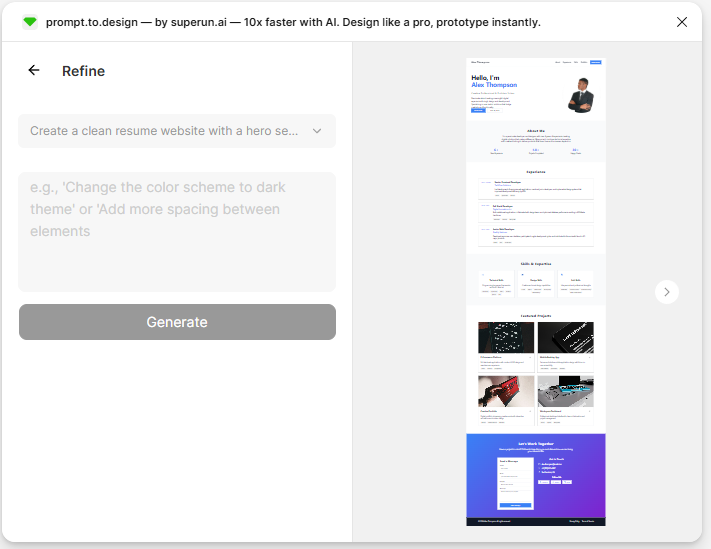
## ✏️ Refine Your Result
Use **Refine** to adjust the current version *without starting over*.
Examples:
* “Make spacing larger”
* “Switch to dark theme”
* “Update hero layout”
***
## ✏️ Refine Your Result
Use **Refine** to adjust the current version *without starting over*.
Examples:
* “Make spacing larger”
* “Switch to dark theme”
* “Update hero layout”
 ***
## 🛠 Import to Figma
When you're satisfied, click **Import to Figma**.
This will:
* Bring the generated layout into your Figma file
* Convert it into editable frames, Auto Layout, text layers, and components
* Maintain styling consistency
***
## 👍 / 👎 Provide Feedback
At the bottom-left, you can rate each generation.
* 👍 Good result
* 👎 Didn’t match expectations
* 💬 Add comments to improve future model performance
***
## 🎯 Summary
This result panel is shared across all features.\
No matter how you generate your layout, you will always see:
* Preview
* Analysis & Summary
* Hover Zoom
* History
* Demo View
* Refine
* Import to Figma
* Feedback tools
This page gives you full control over every generation and helps you iterate quickly with confidence.
***
## 🛠 Import to Figma
When you're satisfied, click **Import to Figma**.
This will:
* Bring the generated layout into your Figma file
* Convert it into editable frames, Auto Layout, text layers, and components
* Maintain styling consistency
***
## 👍 / 👎 Provide Feedback
At the bottom-left, you can rate each generation.
* 👍 Good result
* 👎 Didn’t match expectations
* 💬 Add comments to improve future model performance
***
## 🎯 Summary
This result panel is shared across all features.\
No matter how you generate your layout, you will always see:
* Preview
* Analysis & Summary
* Hover Zoom
* History
* Demo View
* Refine
* Import to Figma
* Feedback tools
This page gives you full control over every generation and helps you iterate quickly with confidence.