> ## Documentation Index
> Fetch the complete documentation index at: https://docs.superun.ai/llms.txt
> Use this file to discover all available pages before exploring further.
# Kick Start
Kick Start helps you create **a brand-new Figma layout** using a short text description.\
It's the fastest way to **turn an idea into a clean, editable frame** that matches your existing Figma design style.
This guide walks you through each step with simple instructions and visual examples.
***
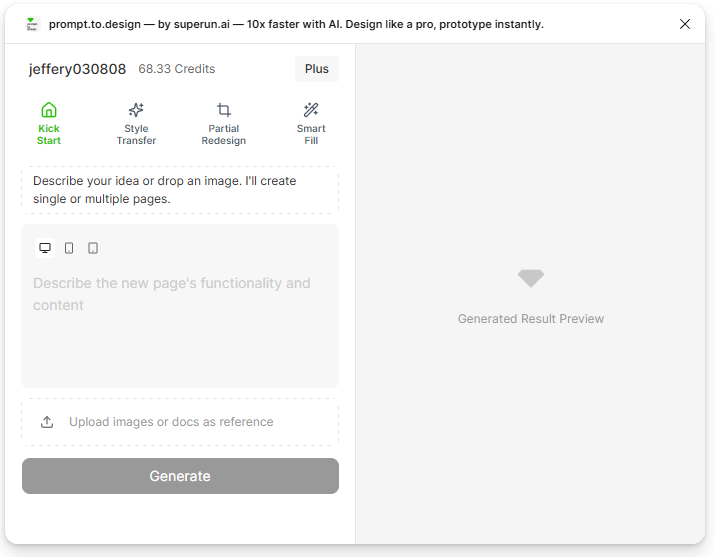
## 1. Open the plugin and select **Kick Start**
Open **prompt.to.design** from the Figma plugin menu.\
In the top navigation, click the **Kick Start** tab to start a new layout generation.
 ***
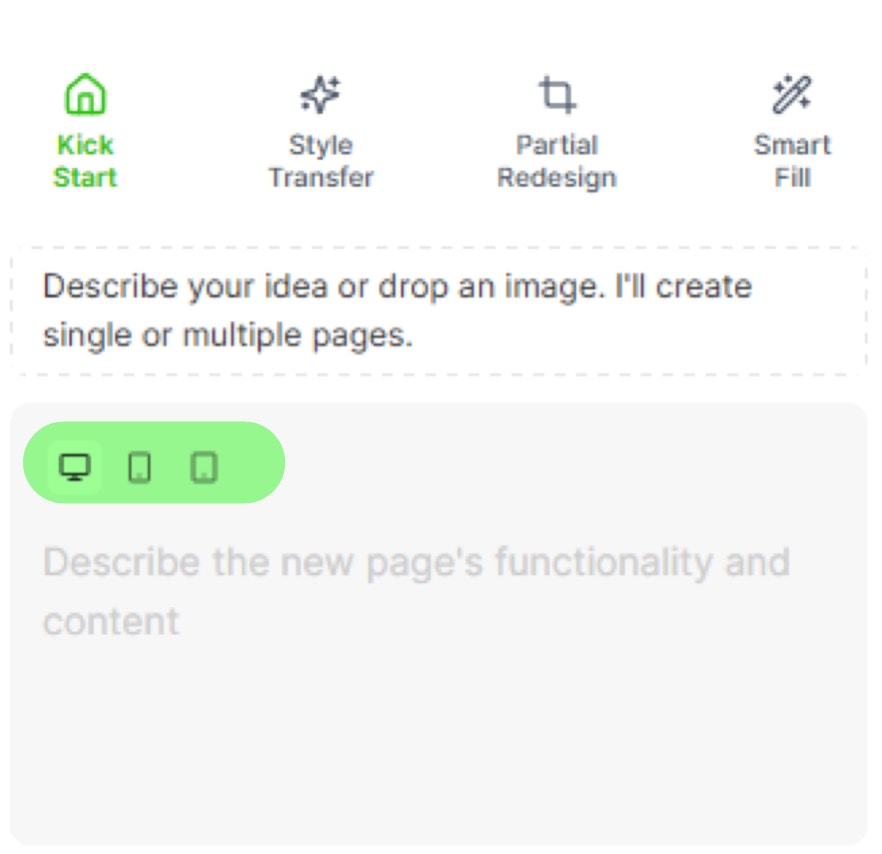
## 2. Choose device and layout size
Select whether you want to generate a **Web** or **Mobile** layout.\
Then choose a layout size that fits your project (e.g., Desktop 1440px, Mobile 390px).
***
## 2. Choose device and layout size
Select whether you want to generate a **Web** or **Mobile** layout.\
Then choose a layout size that fits your project (e.g., Desktop 1440px, Mobile 390px).
 ***
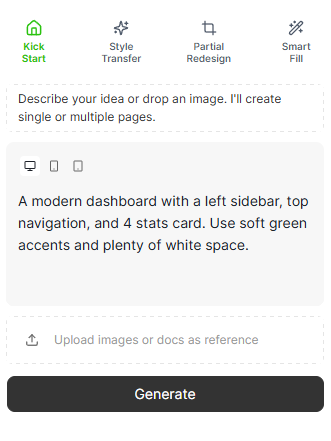
## 3. Describe the page you want to generate
Type a **short and clear description** of your page in the prompt box.\
You can describe **layout structure, sections, page purpose, or style preferences.**
Example prompt:
> "A modern dashboard with a left sidebar, top navigation, and four stats cards. Clean and minimal."
***
## 3. Describe the page you want to generate
Type a **short and clear description** of your page in the prompt box.\
You can describe **layout structure, sections, page purpose, or style preferences.**
Example prompt:
> "A modern dashboard with a left sidebar, top navigation, and four stats cards. Clean and minimal."
 ***
## 4. (Optional) Add an image or document reference
If you want the AI to follow a specific style or visual layout, you can **upload a screenshot, UI reference, or document**.
The reference will appear as a small thumbnail inside the plugin.
***
## 4. (Optional) Add an image or document reference
If you want the AI to follow a specific style or visual layout, you can **upload a screenshot, UI reference, or document**.
The reference will appear as a small thumbnail inside the plugin.
 ***
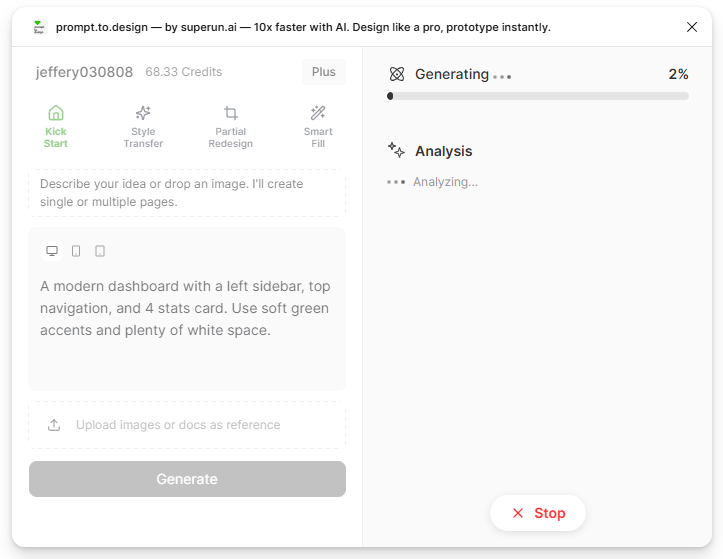
## 5. Click **Generate** and review layout previews
Click **Generate** to start the AI process.\
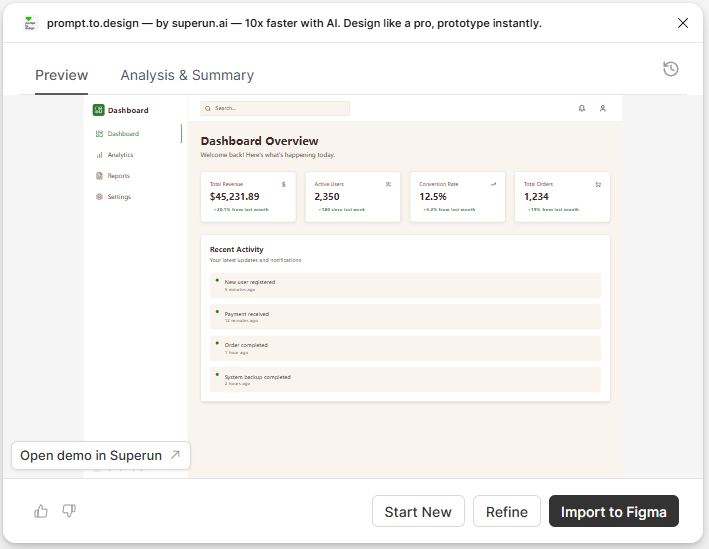
The plugin will show layout preview options when the generation is complete.\
**Scroll or click a preview** to inspect the design before inserting it.
***
## 5. Click **Generate** and review layout previews
Click **Generate** to start the AI process.\
The plugin will show layout preview options when the generation is complete.\
**Scroll or click a preview** to inspect the design before inserting it.
 ***
## 6. Insert the layout into Figma
Choose the layout you like and click **Insert**.\
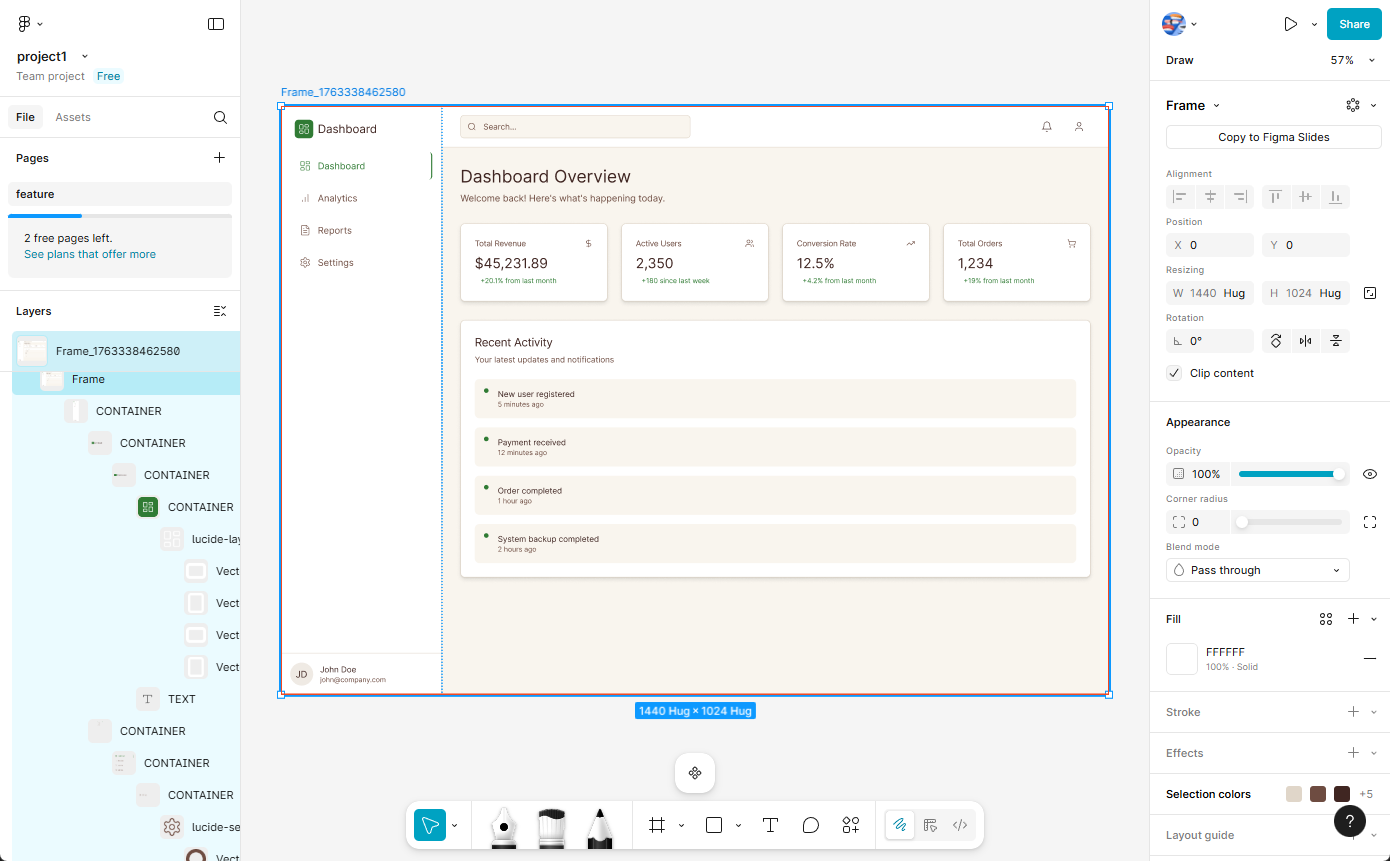
A new frame will be added to your Figma canvas.\
All generated layers are **native Figma elements**, fully editable and ready for iteration.
***
## 6. Insert the layout into Figma
Choose the layout you like and click **Insert**.\
A new frame will be added to your Figma canvas.\
All generated layers are **native Figma elements**, fully editable and ready for iteration.
 ***
## Summary
Kick Start allows you to:
* Go from idea to layout in seconds
* Generate clean, editable Figma frames
* Use prompt-to-design with or without reference images
* Jump-start your workflow without drawing wireframes manually
This makes it the fastest way to begin any new project, from dashboards to landing pages to mobile screens.
***
## Summary
Kick Start allows you to:
* Go from idea to layout in seconds
* Generate clean, editable Figma frames
* Use prompt-to-design with or without reference images
* Jump-start your workflow without drawing wireframes manually
This makes it the fastest way to begin any new project, from dashboards to landing pages to mobile screens.